Thursday, March 17, 2016

About iPhone security,Android mobile security and Mobile Security Apps

by Mobile  |  in Android mobile security and Mobile Security Apps at  5:48 AM
About iPhone security,Android mobile security and Mobile Security Apps

iPhone mobile security

Mobile security applications for Apple's iOS mobile operating system help protect Apple iPhone smartphone and iPad tablet mobile devices from malware threats as well as unauthorized access following accidental lossA or theft of the device.Additional security features frequently offered by iPhone mobile security apps include scanning websites for potential phishing schemes or other fraudulent activity, storing passwords and other confidential information securely, VPN connectivity for protecting data in transit, helping users locate their device if lost or stolen, and more.

The most prominent iPhone mobile security application is one that's integrated into the iOS mobile OS. The iOS Find My Phone built-in application will help locate a lost phone or tablet on a map and can also remotely lock the phone or erase all the data on it to keep the data from being viewed by others.Like the Find My Phone app, most of the well-known iPhone mobile security applications are built into iOS, but third-party security vendors such as Lookout, Kaspersky and Avira offer additional iPhone mobile security features and data protection for iPhones and iPads.

Android mobile security
Mobile security applications for Google's Android platform help protect Android smartphone and tablet mobile devices from malware threats as well as unauthorized access following accidental loss or theft of the device.

   Additional security features frequently offered by Android mobile security apps include securing data on the device, VPN connectivity for protecting data in transit, scanning websites for potential phishing schemes or other fraudulent activity, helping users locate their device if lost or stolen, and more.Android mobile security applications are available from Google as well as well-known third-party security vendors such as Lookout, Avast, Kaspersky, Symantec and Qihu.

mobile security apps


Mobile security apps are applications designed for smartphone and tablet mobile devices to protect and secure the device and its data from unauthorized access in the case of theft or accidental loss. Some mobile security apps can also help users locate their device if it’s lost or stolen.Additional security features typically offered by mobile security apps include malware detection and removal, VPN connectivity for protecting data in transit, scanning websites for potential phishing schemes or other fraudulent activity and more.

Whereas most of the mobile security apps in Apple’s iOS are built into the mobile operating system, numerous third-party mobile security apps are available for Google’s Android mobile OS platform, Microsoft’s Windows Phone and, to a lesser extent, iOS. Well-known security companies like Norton, McAfee, Lookout, BitDefender and ESET offer mobile security apps for Android, Microsoft Windows Phone and/or iOS.


Saturday, March 12, 2016

Mobile Operating System

by Mobile  |  in Mobile Operating System at  3:00 AM

Mobile Operating System

A mobile operating system (or mobile OS) is an operating system for smartphones, tablets, PDAs, or other mobile devices. While computers such as the typical laptop are mobile, the operating systems usually used on them are not considered mobile ones as they were originally designed for bigger stationary desktop computers that historically did not have or need specific "mobile" features. This distinction is getting blurred in some newer operating systems that are hybrids made for both uses.

Mobile operating systems combine features of a personal computer operating system with other features useful for mobile or handheld use; usually including, and most of the following considered essential in modern mobile systems; a touchscreen, cellular, Bluetooth, Wi-Fi, GPS mobile navigation, camera, video camera, speech recognition, voice recorder, music player, near field communication and infrared blaster.

Mobile devices with mobile communications capabilities contain two mobile operating systems – the main user-facing software platform is supplemented by a second low-level proprietary real-time operating system which operates the radio and other hardware. Research has shown that these low-level systems may contain a range of security vulnerabilities permitting malicious base stations to gain high levels of control over the mobile device

A mobile operating system, also called a mobile OS, is an operating system that is specifically designed to run on mobile devices such as mobile phones, smartphones, PDAs, tablet computers and other handheld devices. The mobile operating system is the software platform on top of which other programs, called application programs, can run on mobile devices.


Mobile Operating System (Mobile OS)

  Much like the Linux or Windows operating system controls your desktop or laptop computer,  a mobile operating system is the software platform on top of which other programs can run on mobile devices.The operating system is responsible for determining the functions and features available on your device, such as thumbwheel, keyboards, WAP, synchronization with applications, email, text messaging and more.The mobile OS will also determine which third-party applications (mobile apps) can be used on your device.

Types of Mobile Operating Systems
When you purchase a mobile device the manufacturer will have chosen the operating system for that specific device.  Often, you will want to learn about the mobile operating system before you purchase a device to ensure compatibility and support for the mobile applications you want to use.
9 Popular Mobile Operating Systems

1. Android OS (Google Inc.)
  The Android mobile operating system is Google's open and free software stack that includes an operating system, middleware and also key applications for use on mobile devices, including smartphones. Updates for the open source Android mobile operating system have been developed under “dessert-inspired” codenames (Cupcake, Donut, Eclair, Gingerbread, Honeycomb, Ice Cream Sandwich) with each new version arriving in alphabetical order with new enhancements and improvements.

2. Bada (Samsung Electronics)
Bada is a proprietary Samsung mobile OS that was first launched in 2010. The Samsung Wave was the first smartphone to use this mobile OS. Bada provides mobile features such as multipoint-touch, 3D graphics and of course, application downloads and installation.
Did You Know…? In the computer industry, proprietary is the opposite of open. A proprietary design or technique is one that is owned by a company. It also implies that the company has not divulged specifications that would allow other companies to duplicate the product.

3. BlackBerry OS (Research In Motion)
The BlackBerry OS is a proprietary mobile operating system developed by Research In Motion for use on the company’s popular BlackBerry handheld devices. The BlackBerry platform is popular with corporate users as it offers synchronization with Microsoft Exchange, Lotus Domino, Novell GroupWise email and other business software, when used with the BlackBerry Enterprise Server.

4. iPhone OS / iOS (Apple)
Apple's iPhone OS was originally developed for use on its iPhone devices. Now, the mobile operating system is referred to as iOS and is supported on a number of Apple devices including the iPhone, iPad, iPad 2 and iPod Touch. The iOS mobile operating system is available only on Apple's own manufactured devices as the company does not license the OS for third-party hardware. Apple iOS is derived from Apple's Mac OS X operating system.
Editor’s Pick:  Need help understanding Apple mobile devices? Webopedia’s “iPhone, iPhone 3G, and iPhone 3G S - What's The Difference?” article will help you get started.    

5. MeeGo OS (Nokia and Intel)
   A joint open source mobile operating system which is the result of merging two products based on open source technologies: Maemo (Nokia) and Moblin (Intel).  MeeGo is a mobile OS designed to work on a number of devices including smartphones, netbooks, tablets, in-vehicle information systems and various devices using Intel Atom and ARMv7 architectures.

6. Palm OS (Garnet OS)
The Palm OS is a proprietary mobile operating system (PDA operating system) that was originally released in 1996 on the Pilot 1000 handheld. Newer versions of the Palm OS have added support for expansion ports, new processors, external memory cards, improved security and support for ARM processors and smartphones. Palm OS 5 was extended to provide support for a broad range of screen resolutions, wireless connections and enhanced multimedia capabilities and is called Garnet OS.

7. Symbian OS (Nokia)
Symbian is a mobile operating system (OS) targeted at mobile phones that offers a high-level of integration with communication and personal information management (PIM) functionality. Symbian OS combines middleware with wireless communications through an integrated mailbox and the integration of Java and PIM functionality (agenda and contacts). Nokia has made the Symbian platform available under an alternative, open and direct model, to work with some OEMs and the small community of platform development collaborators. Nokia does not maintain Symbian as an open source development project.

8. webOS (Palm/HP)
WebOS is a mobile operating system that runs on the Linux kernel. WebOS was initially developed by Palm as the successor to its Palm OS mobile operating system. It is a proprietary Mobile OS which was eventually acquired by HP and now referred to as webOS (lower-case w) in HP literature. HP uses webOS in a number of devices including several smartphones and HP TouchPads. HP has pushed its webOS into the enterprise mobile market by focusing on improving security features and management with the release of webOS 3.x. HP has also announced plans for a version of webOS to run within the Microsoft Windows operating system and to be installed on all HP desktop and notebook computers in 2012.

9. Windows Mobile (Windows Phone 7)
Windows Mobile is Microsoft's mobile operating system used in smartphones and mobile devices – with or without touchscreens. The Mobile OS is based on the Windows CE 5.2 kernel. In 2010 Microsoft announced a new smartphone platform called Windows Phone 7.

Sunday, March 6, 2016

How mobile tech is improving global disaster relief

by Mobile  |  in How mobile tech is improving global disaster relief at  10:00 PM

How mobile tech is improving global disaster relief


mobile tech is improving global disaster relief
Yet people are desperate to let their loved ones know they're safe and to find out what's going on."The first questions people always ask when they arrive at a refugee camp are 'Where can I charge my phone?' and 'Is there wi-fi?'," says John Warnes, innovation specialist at the UN High Commissioner for Refugees (UNHCR).

"These often seem to be more important to people than food and water."Administering food, shelter and medical aid is made even harder for aid agencies and non-governmental organisations (NGOs) without proper communications.So some technology companies have been innovating to find ways of meeting these challenges.

Instant hotspot
Telecoms companies have been engaging in larger-scale communications projects in disaster areas around the world, but are also realising the benefits of more portable solutions.

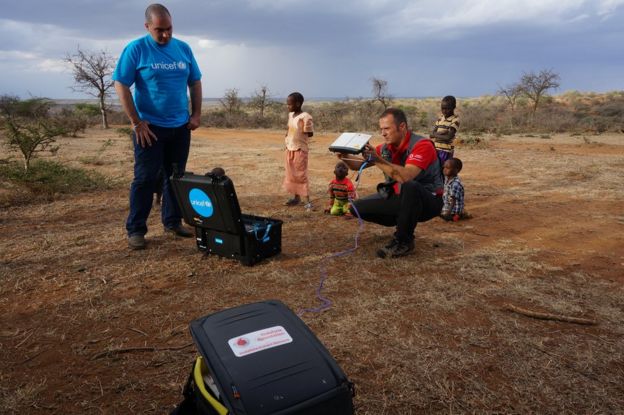
For example, Croatian firm MeshPoint has designed a highly-portable rugged, all-weather wi-fi and 4G mobile device that can connect up to 150 people to the internet at the same time. It contains a built-in battery to enable quick set-up in the most inhospitable conditions.The unit can be used on its own to create a local internet hotspot, or linked to others to form a network for use over a wider area."It's also important for aid agencies trying to co-ordinate their efforts."Earlier this year, the instant network mini kit was deployed in the Kathmandu valley, Nepal, to help restore communications following the devastating earthquake there. And larger versions of its instant network kits have been used in South Sudan and the Philippines.

The smartphone has certainly given people more mobile functionality but at the expense of battery life, so providing energy stations where displaced people can recharge their phones is also becoming increasingly important, Mr Walton argues.Setting network mast amid typhoon destructionImage copyrightVodafone Foundationand a larger version was used in the Philippines following a particularly destructive typhoon"The old Nokia phones would last for days, but smartphones use more power and don't last as long," The Foundation has developed charging blocks that can be screwed on to makeshift tables. They feature 20 USB ports for phone cables, can be linked in groups of three, and are recharged using generators or solar panels.

Is the iPhone getting a new screen?

by Mobile  |  in Is the iPhone getting a new screen? at  9:51 PM

Is the iPhone getting a new screen?


i phone before and  after
     Rumors are circulating that Apple, the Cupertino, California-based tech behemoth, is working out deals with LG and Samsung to use a different type of screen technology in the iPhone. The screens would change to organic light-emitting diode, or OLED, which promises better-quality images when compared with liquid crystal display, a standard that's been used in computers for years. The Electronic Times, a Korean tech publication, wrote about the change, citing unnamed sources.
The move would mark the first substantive change in screen technology for the iPhone since 2010, when Apple released "retina" displays that promised to show so much detail that users wouldn't be able to distinguish what's on the screen from a printed image. Despite that change, Apple has relied on LCD technology since the iPhone's debut in 2007.

   An Apple spokeswoman declined to comment. Neither LG nor Samsung immediately responded to a request for comment. Previous stories from Japan's Nikkei and others have also claimed Apple is planning to change its display technology within the next couple of years.Speculation about the next iPhone's features is a sport in the technology industry. Publications large and small chase down hints of what might come next, be it a slimmer profile or a different size, or a new feature like wireless charging. There have even been rumors about what Apple will remove, such as a headphone jack.Sometimes the rumors are correct but Apple ultimately delays the feature to a later iteration of the phone. Other times, reporters pick up on preliminary discussions that Apple is having. And sometimes the rumors are just plain wrong.When it comes to OLED, though, there's reason to both believe and distrust these rumors.

    Apple has signaled a distaste for OLED displays in the past, for example. Three years ago, Tim Cook, Apple's CEO, said he considered the technology "awful.""If you ever buy anything online and really want to know what the color is, as many people do, you should really think twice before you depend on the color from an OLED display,"The move would mark the first substantive change in screen technology for the iPhone since 2010, when Apple released "retina" displays that promised to show so much detail that users wouldn't be able to distinguish what's on the screen from a printed image. Despite that change, Apple has relied on LCD technology since the iPhone's debut in 2007.An Apple spokeswoman declined to comment. Neither LG nor Samsung immediately responded to a request for comment. Previous stories from Japan's Nikkei and others have also claimed Apple is planning to change its display technology within the next couple of years.Speculation about the next iPhone's features is a sport in the technology industry. Publications large and small chase down hints of what might come next, be it a slimmer profile or a different size, or a new feature like wireless charging. There have even been rumors about what Apple will remove, such as a headphone jack.

   Sometimes the rumors are correct but Apple ultimately delays the feature to a later iteration of the phone. Other times, reporters pick up on preliminary discussions that Apple is having. And sometimes the rumors are just plain wrong.When it comes to OLED, though, there's reason to both believe and distrust these rumors.Apple has signaled a distaste for OLED displays in the past, for example. Three years ago, Tim Cook, Apple's CEO, said he considered the technology "awful.""If you ever buy anything online and really want to know what the color is, as many people do, you should really think twice before you depend on the color from an OLED display,"

About Xiaomi Mi 5

by Mobile  |  in About Xiaomi Mi 5 at  9:42 PM

 About Xiaomi Mi 5

 Xiaomi mi 5
 The Xiaomi Mi 5 has seen the light without precedent for Barcelona amid Xiaomi's first appearance at the Mobile World Congress, with an appealling Hugo Barra showing the gadget to the world.We've needed to sit tight right around two years for the new leader from one of China's greatest producers

Release date and price

The most recent lead from Xiaomi takes to the business sector in three distinct forms. The most moderate model costs 1,999 CNY (about US$305) and brings 32 GB of inner stockpiling and a 3D glass back board, yet has a lower clock speed than the other two models, 1.8 GHz rather than 2.15 GHz.

The center model has 64 GB of interior stockpiling and a 3D glass back board, and will be estimated at 2,299 CNY (US$352).

At last, there's the Pro form, which will pull along 4 GB of RAM, contrasted and the 3GB at the transfer of the other two adaptations, and a 3D fired back, just for a cost of 2,699 CNY (US$413).

Hardware Specifications

At 129 g the Mi 5 is one of the lightest flagships of recent times. Neither the 152 g Galaxy S7 nor the 159 g LG G5 can compete with it on weight.

The Xiaomi Mi 5 has a 5.15-inch screen with Full HD determination. These numbers offer all that could possibly be needed pixels per inch, with not a single imperfections in sight anyplace on the showcase. The shades of the MIUI 7 interface tackle an amazing brightness.

The unique mark scanner on the Xiaomi Mi 5 is introduced in the home catch, instead of on the back, similar to the case on the Redmi Note. The introductory setup takes a little more than five seconds, and opening the gadget appeared to be smooth and quick when I tried it.

Under its shell, the Xiaomi Mi 5 houses a Snapdragon 820 processor running at 2.1 GHz. This is bolstered by 3 GB of RAM in the 32 and 64 GB models, and 4 GB of RAM in the Pro model, which packs 128 GB of interior stockpiling.

The new Qualcomm processor ought to guarantee speedier execution than the 810 and, most importantly, ought to put to rest, unequivocally, the overheating issues that have tormented the 810 on different gadgets through the span of 2015.

The Mi 5 houses a 16 MP IMX298 main camera of Sony design. The rear camera integrates Xiaomi’s 4-axis optical image stabilization technology, which should ensure sharper images when taking moving pictures.

On the front, we discover a 4 MP camera with f/2.0 opening lens, fit for 80-degree (wide-edge) selfies. The camera application has an instinctive interface. It was anything but difficult to utilize even in the brief span I had with the gadget, and it reacted rapidly to my taps and presses. To survey the nature of pictures completely, we'll hold up until the gadget touches base in the newsroom.

The Mi 5 comes carrying a 3,000 mAh battery, which should be more than enough to keep the device going for a good length of time, especially when combined with Marshmallow’s Doze feature and the more ergonomic Snapdragon 820.
The Mi 5 also supports Quick Charge 3.0, which boasts 20 percent faster charging speeds than 2.0, promising an 80-90 percent battery charge in an hour.

Conclusion

Xiaomi has given us a superb leader, able to do serenely contending with those seen from Samsung, LG and Apple.
By and by, I was expecting a touch of something additional from the gadget, as with the OnePlus 2, given the long hold up and the plenty of bits of gossip that energized my desires.
It remains frequented by one major issue: the absence of an official discharge in Europe and the US makes it hard to get hold of. Be that as it may, the Mi 5 is without a doubt a fantastic gadget.

Saturday, February 6, 2016

About Solar cell phone charger

by Mobile  |  in About Solar cell phone charger at  1:38 AM
 About Solar cell phone charger
Solar cell phone charger
Solar cell phone chargers use solar panels to charge cell phone batteries. They are an alternative to conventional electrical cell phone chargers and in some cases can be plugged into an electrical outlet.

There are also public solar chargers for mobile phones which can be installed permanently in public places such as streets, park and squares. The model which is according to European Commission proclaimed as the first in the world is the Strawberry Tree, public solar charger invented by Strawberry energy Company. This solar station won the first place at "EU Sustainable energy week (EUSEW) 2011" in the Consuming category.

Some models of cell phones have a built in solar charger and are commercially available for GSM cellphone models.

Solar cell phone chargers come in different shapes and configurations including folding  and rotating types.
They also come in the form of straps, with solar cells on the outer surface and a nickel metal hydride battery within. Current solar cell technology limit the effectiveness and practicality of phone solar chargers for everyday use. Phone charge times vary depending on the battery capacity installed which continues to increase, further extending the charge times of solar chargers. The fold-out design has proven to allow for higher charge current while maintaining a compact size and current designs are capable of charging a modern smartphone in 3 hours.

Solar chargers are also available for other cell phone accessories, such as bluetooth headsets and speaker phones.

Typically equipped with one solar cell, a solar cell phone charger can accommodate almost any model cell phone. It can use the sun's energy to recharge a cell phone, but also has the option of plugging into an electrical outlet if there is one available.

Solar cell phone chargers are perfect for traveling, hiking, or just charging your phone outside while you work in the garden.

Thursday, January 28, 2016

How to Save Mobile phone screen from Scratches ?

by Mobile  |  in How to Save Mobile phone screen from Scratches ? at  2:47 AM
How to Save Mobile  phone screen from Scratches ?
Save Mobile Phone screen scratches
      Locate scratches on your glossy new phone?  It is pretty much obnoxious. So to get rid of the scratches, you might invest on a screen guard or cell-phone cover which you may think is the best resolution. But here are also some freeways on how to prevent and liberate your handset from these scratches.

1. Assign a special pocket for your phone. Coins,  keys and especially sand scratch your phone very easily. If pressed hard against the screen, their sharp edges can irreparably damage the pixels on your phone.

2. Don’t be vigorous while playing games on your phone. Gripping your phone too hard can damage it. Avoid the temptation to throw the phone across the room when you get a lame SMS – remember it’s not the messenger’s fault.

3. Clean your screen every week. Be careful about whom you’ve hand over your phone to and as to where you’re keeping it. Common sense is key.

4. Keep your phone away from moisture. It’ll make your phone behave in unexpected ways. If you’re still determined to pursue the path of screen-guard-free phones, you can try keeping your cell phone in an airtight plastic bag. And consume the habit of not placing your phone on any rough sort of surface or drinks spilt surface. In accordance with Murphy’s Law, they’ll always spill at the worst possible moment.

How to get rid of scratches…

1. Dab a bit of paste-based (not gel) toothpaste on a tissue or soft cloth and rub it gently in a circular pattern on your phone where the scratches are most prominent. Allow it to stay for few minutes. Then remove it using a moistened tissue. Repeat as many times as necessary. Be careful though, as some toothpaste can contain abrasives. Experiment on a small section of your phone first, before you decide to get too daring.

2. You can also use baby powder or baking soda mixed with a few drops of water in lieu of toothpaste for the same results.

3. And if you’re in a DIY mood, you can always try out this tutorial.

Friday, January 22, 2016

How to save a mobile phone - what to do? n what not to do?

How to save a  mobile phone - what to do? n what not to do?
    Washing machines, toilets, cups of tea, ... these are a few of our favorite things. That is, until they fill the lungs of our cherished mobile phone, leaving us weeping over a soggy, lifeless metal carcass.
Save Mobile phone
What to do?
       While dismantling your phone completely would help it to dry out more effectively, doing so will void your warranty. It usually requires specialist tools and may jeopardise your phone if you're not careful, so I don't recommend it. Instead, follow these steps:

1. Firstly, retrieve your handset from the drink straight away. A prolonged plunge will increase the risk of damage.

2. Resist the urge to check if it still works or press any buttons, since putting pressure on the keys could shift liquid further into the device.

3. In all cases, the best thing to do is immediately pull out the battery, thus minimising power to the device that may cause it to short circuit.

4. If you own a handset with a non-replaceable battery, like an iPhone or Nokia Lumia, then pulling the battery isn't an option. You'll have to risk pressing a few buttons to check if it's still on and to swiftly turn it off if it is. Take care when handling the phone in this case.

5. Remove any peripherals and attachments on your phone, such as cases.

6. Extract the SIM card and any SD cards it carries, leaving ports or covers on your handset open to aid ventilation.

7. Dry off everything with a towel, including the exterior of your handset, being careful not to let any water drain into openings on the phone.

8. Even when everything's dry, it's very likely there's latent moisture within the device that you'll want to get out before turning it on. The most oft-reported fix for a sodden phone is to bury the handset in a bowl of dry rice. Desiccant materials, such as rice, have hygroscopic properties that can attract and absorb moisture. You can also use silica gel packs -- the kind used in shoeboxes -- to greater effect. If you don't have any lying around, uncooked rice will do nicely


Place your phone in an airtight container and completely cover it with your choice of desiccant. Leave the container for 24-48 hours for the material to draw all the moisture out of your handset. If you feel like splashing out, you can buy silica-lined, hermetically-sealed pouches that are specifically designed for the task.

9. When you're confident it's dried out, replace the battery and try switching it on. Good luck!

What not to do?
     A purported fast-track method of drying out a wet phone is to use a hairdryer, or applying heat to the device in other ways. While this would successfully evaporate all the moisture still sitting within the handset, it risks becoming too hot and causing damage to the components.

In cases of severe water logging, the steam created may not be able to fully ventilate and would simply condense again elsewhere in the phone. You may get away with it, but it seems rather perilous, so my recommendation is to avoid this method.

Another recurring recommendation is to stick your phone in a freezer, wrapped in paper towel to prevent frost damage. Supposedly, the reduced conductivity of water when close to freezing temperatures will stop your phone from short circuiting when in use.

This is definitely not a long-term solution, however, since as soon as the ice begins to thaw, you're left with the same, if not exacerbated, problem. In the process you'll probably mess up your phone's very fragile screen, which hardly seems worth risking for a short-term fix of dubious effectiveness.

For less severe dunkings, you may get away with drying your phone thoroughly on the exterior alone, paying special attention to openings like the headphone jack and USB port. To this end, a few have suggested gently poking into them with a toothpick wrapped in paper towel. While jabbing into your phone with a stick is always a bit iffy, the biggest risk is that rags of sodden paper will get stuck inside your phone and play havoc with its innards.

One suggestion is to overcharge the handset so that the build-up of heat is gradual and not excessive, but this carries all the risks you'd expect with running a current through wet circuitry.


WINDOWS PHONE

by Mobile  |  in WINDOWS PHONE at  2:39 AM
WINDOWS PHONE
Windows Phone
   Windows Phone is an operating system for mobile phones developed by Microsoft. Windows Phone launched in 2010 and was called Windows Phones 7, replacing Microsoft’s Windows Mobile operating system. The new OS had a cleaner interface, with a distinctive vertical stream of tiles and brought greater synchronisation with other Microsoft products, such as Xbox Live, Office and Hotmail.

In 2011 Nokia and Microsoft announced a strategic alliance, whereby Windows Phone would become the operating system of choice for Nokia smartphones, alhandsets equipped with Windows Phone.
though HTC and Samsung also manufacturer 
As with Android and iOS, Windows Phone is updated regularly, improving the appearance, usability and adding new features. The latest version of Windows Phone is Windows Phone 8, which supports faster processors and introduces resizable tiles.

We’ve got a fantastic selection of handsets running on Windows Phone. The search and compare tools from Recombu Mobile include the option to choose a price range, so you can only view deals suited to your preferred monthly cost. You can also filter according to your ideal, allowances for calls and texts, contract length, network and phone features.

Versions
1.Windows Phone 7
2.Windows Phone 8
3.Windows Phone 8.1
4.Windows 10 

Features
1.User interfac
2.Text input
3.Web browser
4.Contacts
5.Email
6.Multimedia
7.Media support
8.Games
9.Search
10.Cortana
11.Office suite
12.Multitasking
13.Sync
14.Windows Phone 7
15.Later versions
16.Updates
17.Advertising platform
18.Bluetooth
19.Feature additions

Wednesday, January 20, 2016

About CDMA mobile phone

by Mobile  |  in About CDMA mobile phone at  2:50 AM
 About CDMA mobile phone
   
   CDMA (Code-Division Multiple Access) is a channel access method used by various radio communication technologies. It is a form of multiplexing, which allows numerous signals to occupy a single transmission channel, optimizing the use of available bandwidth. The technology is used in ultra-high-frequency (UHF) cellular telephone systems in the 800-MHz and 1.9-GHz bands.

CDMA Mobile phone
   CDMA employs analog-to-digital conversion (ADC) in combination with spread spectrum technology. Audio input is first digitized into binary elements. The frequency of the transmitted signal is then made to vary according to a defined pattern (code), so it can be intercepted only by a receiver whose frequency response is programmed with the same code, so it follows exactly along with the transmitter frequency. There are trillions of possible frequency-sequencing codes, which enhances privacy and makes cloning difficult.

The original CDMA standard, also known as CDMA One and still common in cellular telephones in the U.S offers a transmission speed of only up to 14.4 Kbps in its single channel form and up to 115 Kbps in an eight-channel form. CDMA2000 and Wideband CDMA deliver data many times faster.
 CDMA, or Code Division Multiple Access, is a competing cell phone service technology to GSM, which is the world’s most widely used cell phone standard.

CDMA uses a “spread-spectrum” technique whereby electromagnetic energy is spread to allow for a signal with a wider bandwidth. This allows multiple people on multiple cell phones to be “multiplexed” over the same channel to share a bandwidth of frequencies.

With CDMA technology, data and voice packets are separated using codes and then transmitted using a wide frequency range. Since more space is often allocated for data with CDMA, this standard became attractive for 3G high-speed mobile Internet use
The CDMA standard was originally designed by Qualcomm in the U.S.
nd is primarily used in the U.S. and portions of Asia by other carriers. Sprint, Virgin Mobile and Verizon Wireless use CDMA while T-Mobile and AT&T use GSM.

While CDMA and GSM compete head on in terms of higher bandwidth speed (i.e. for surfing the mobile Web), GSM has more complete global coverage due to roaming and international roaming contracts.

GSM technology tends to cover rural areas in the U.S. more completely than CDMA. Over time, CDMA won out over less advanced TDMA technology, which was incorporated into more advanced GSM.

Advantages of CDMA mobile phone
  1.  Efficient practical utilization of fixed frequency spectrum.
  2.  Flexible allocation of resources.
  3.  Many users of CDMA use the same frequency, TDD or FDD may be used
  4.  Multipath fading may be substantially reduced because of large signal bandwidth
  5. No absolute limit on the number of users, Easy addition of more users.
  6.  Impossible for hackers to decipher the code sent
  7.  Better signal quality
  8. No sense of handoff when changing cells
  9. The CDMA channel is nominally 1.23 MHz wide.
  10. CDMA networks use a scheme called soft handoff, which minimizes signal breakup as a handset passes from one cell to another.
  11. CDMA is compatible with other cellular technologies; this allows for nationwide roaming.
  12. The combination of digital and spread-spectrum modes supports several times as many signals per unit bandwidth as analog modes.
  13.  As the number of users increases, the overall quality of service decreases
  14.  Self-jamming
  15. Near- Far- problem arises
  16. and many mores.

About GSM mobile phone

by Mobile  |  in About GSM mobile phone at  2:33 AM
 About GSM mobile phone

Definition:
    GSM, which stands for Global System for Mobile communications, reigns as the world’s most widely used cell phone technology. Cell phones use a cell phone service carrier’s GSM network by searching for cell phone towers in the nearby area.
GSM L Mobile phone logo

The origins of GSM can be traced back to 1982 when the Groupe Spécial Mobile (GSM) was created by the European Conference of Postal and Telecommunications Administrations (CEPT) for the purpose of designing a pan-European mobile technology.

It is approximated that 80 percent of the world uses GSM technology when placing wireless calls, according to the GSM Association (GSMA), which represents the interests of the worldwide mobile communications industry. This amounts to nearly 3 billion global people.

Cell phone carriers T-Mobile and AT&T use GSM for their cell phone network
For practical and everyday purposes, GSM offers users wider international roaming capabilities than other U.S. network technologies and can enable a cell phone to be a “world phone”. More advanced GSM incorporates the earlier TDMA standard.

GSM carriers have roaming contracts with other GSM carriers and typically cover rural areas more completely than competing CDMA carriers (and often without roaming charges, too).

GSM also has the advantage of using SIM (Subscriber Identity Module) cards in the U.S. The SIM card, which acts as your digital identity, is tied to your cell phone service carrier’s network rather than to the handset itself.

This allows for easy exchange from one phone to another without new cell phone service activation.
GSM uses digital technology and is a second-generation (2G) cell phone system. GSM, which predates CDMA, is especially strong in Europe. EDGE is faster than GSM and was built upon GSM.

Advantages of  GSM phone
1.Less signal deterioration inside buildings.
2.Ability to use repeaters.
3.Telktime is generally higher in gsm phone due to the pluse of transmission.
4.The avaliability of sim allows users to switch network and handset at will, aside from a subsidy lock.
5.GSM covrs virtually all parts of the world so international roming is not a problem.
6.The much bigger number of subscribers globally creates a better network effect for GSM handset makers, carrires and end users.
7.High transmission quality of audio and reliability for wirless, uninterrupted phone calls at higher speeds.

Tuesday, January 19, 2016

Mobile phone benefits

by Mobile  |  in Mobile phone benefits at  2:37 AM

Mobile phone benefits
Information Distribution

Video Availability
    Using a supported device, any user can independently access any available video source—any user-initiated stream, Screencast, camera feed or video file.

The console operator can push any video source directly to users. While viewing a user feed, the operator can pause, rewind it to a frame of interest, and send to remote users from that point so they do not miss the relevant action. Other critical data can be shared with users as well, including images, files, documents and Web page content.

Android®, iPhone® and iPad® users have enhanced video functionality including the ability to share a video feed directly with authorized users.

Information Context Users know exactly what they are being presented for viewing, and have the flexibility to process incoming commands immediately or at any later point through the user’s personal history log.

Command History
At any time, a user can access a personal history log to independently retrieve any video stream sent previously to or by that user..

The "Inbox" will list all video streams received by the user. The "Outbox" will list all shared video streams shared by that user. Selecting any entry will play the video sent/received through the system, and give the viewer the option to share the content with others.

Each time a user signs on to RealityVision, he or she will be notified of any pending video sources and other data that had been sent by a console operator while the user was signed off. At that point, the user can process the commands immediately or at a later point.
Contextual Messaging Console operators and users can embed a text message with issued commands for greater context, such as explaining to recipients why they are being sent a live video feed from another user. Console operators can request a user response.
Enhanced iPad Mapping Display The iPad map display now incorporates a new “Find” feature.  This allows an iPad user to type in the name of a mapped RealityVision user or video source to quickly find that item on the main map.

If a mapped user is watching multiple video feeds at the same time, an iPad user can now see what that mapped user is watching with a new multi-watch pop-over on the main map display.
Console Annotations In addition to pushing video streams, the operator can also create and annotate images to share with users. Images can be created in multiple ways—such as pausing on a live feed, retrieving an image from the video history, or grabbing an image directly from a PC screen. Recipients can view the image with and without the annotation overlay.
Cued Video
Depending on the stream, a live video session can be paused, rewound to a frame of interest, and sent to remote users from that point so they do not miss the relevant portion of the video.

Android, iPhone and iPad users can add comments to a video session as a whole or to any individual frame within a video they are viewing.
Read Receipt The console operator can instantly review the status of video sources and other commands sent to users and obtain detailed information about the command and each user’s response.

 Ease of Use
    Instant Global Reach All system components run on off-the-shelf hardware and require only an Internet connection to communicate with each other. Virtually any wired or wireless Internet connection will work, including commercial cellular, Wi-Fi, satellite and tactical wireless mesh networks.
Ease of Integration The system is specifically designed to allow for integration with other components, including situation management, video surveillance and artificial intelligence solutions.
Broad Mobile OS Support RealityVision supports Apple®, Android® and Windows® operating systems.
Intuitive Design
Easy-to-understand design allows management console operators and remote device users to easily find and share critical information. With virtually no learning curve, RealityVision users can:

Categorize video sources in different ways for ease of presentation to users
Instantly access all available video sources, including networked camera feeds, RealityVision Screencasts™, user feeds and video files.
Easily visualize available location information and text tags while watching a video stream.
Use the "Find" feature, either in split-screen or full screen mode to quickly identify any mapped user or video source
Readily access your own archive videos.
A bundled Push-to-Talk (PTT) option for Android and iOS users supporting a seamless visual and audio experience among them
Access mapping resources and easily share video feeds among authorized users along with associated mapping information and other contextual data.


intuitive Design
Easy-to-understand design allows management console operators and remote device users to easily find and share critical information. With virtually no learning curve, RealityVision users can:

Categorize video sources in different ways for ease of presentation to users
Instantly access all available video sources, including networked camera feeds, RealityVision Screencasts™, user feeds and video files.
Easily visualize available location information and text tags while watching a video stream.
Use the "Find" feature, either in split-screen or full screen mode to quickly identify any mapped user or video source
Readily access your own archive videos.
A bundled Push-to-Talk (PTT) option for Android and iOS users supporting a seamless visual and audio experience among them
Access mapping resources and easily share video feeds among authorized users along with associated mapping information and other contextual data.

 Architecture and Security
    Network Bandwidth Optimization Allows users to stream and receive actionable visual information in high bandwidth conditions, low bandwidth conditions or while switching between the two. The transmit protocol for streaming from the device over networks is optimized to adapt instantly to changing network conditions, maintain image quality and prevent partial reconstruction of the images at the viewer.

Distributed
  Architecture System components can be installed behind the enterprise firewall on different hardware and in different locations or zones in support of IT best practices.
Secure 

Communications 
   Channels SSL/TLS support out of the box; FIPS 140-2 compliant VPN options. Please contact Reality Mobile directly if you require Suite B level encryption.

Data Traffic
   Optimization Power management and heartbeat checks are used to minimize network traffic and preserve battery life – critical for mobile users.
Server Scalability Flexibility to pool, segregate and group users across physical and virtual servers; the import-export feature allows data to be shared across servers while preserving server autonomy.
Metadata Indexing Incoming video streams are indexed against a multitude of metadata elements including user, device, location information and user-generated descriptive text tags, enabling broad searches and accurate identification of videos.
Automatic Video Transcoding and Bandwidth Adaptation Video sources are transcoded as necessary for user viewing. Video frame rates are adjusted for limited and varying network bandwidths.

Customizable Transmit Compression, Image
   Quality and Bandwidth Allocation Android device users can customize their video streams to adapt instantly to the local network environment.
User Authentication Activate the system’s authentication procedures to verify the identity of each user against Microsoft Active Directory or other accounts. The system also supports the creation of additional authentication modules.
Forced Sign Off Management console operators can remotely sign off a user in the event a device is lost while logged into the network.
Enterprise Tool set Customizable operations settings, audit logs, database management and other administrative tools are available.


GPS Tracking
    Track Your Personnel Allows users to stream and receive actionable visual information in high bandwidth conditions, low bandwidth conditions or while switching between the two. The transmit protocol for streaming from the device over networks is optimized to adapt instantly to changing network conditions, maintain image quality and prevent partial reconstruction of the images at the viewer.
Track Your Video
Sources System components can be installed behind the enterprise firewall on different hardware and in different locations or zones in support of IT best practices.
Common Operating
Picture SSL/TLS support out of the box; FIPS 140-2 compliant VPN options. Please contact Reality Mobile directly if you require Suite B level encryption.

 Available Information Sources

User-Initiated Video Streams
Users can immediately stream video feeds from virtually any camera source, each tailored to an organization’s specific operational requirements. Camera sources can range from microscope cameras, cell phone cameras, webcams, handheld camcorders, and long-range telephoto devices to external cameras such as UAV feeds.

Users can stream their location information and initiate a one-button alert for priority attention from the console operator.

Users can directly access and view their own archived videos and add text tags to it.
Peer-to-Peer Video Sharing

Users can share video feeds they are watching or transmitting with other authorized users, along with associated mapping information and other contextual data.

Bundled Push-to-Talk (PTT) Option

Android and iOS users can have secure PTT audio conversations with each other while viewing and sharing available video sources.
  
The bundled PTT is based on the SIP open standard, giving the customer flexibility to select its own third-party SIP server to manage the voice traffic.

Mapping Resources
Control which map is used across all devices and add additional custom data and image overlays for enhanced operational context.

User Text Tags
A transmitting user can add a descriptive text comment to an incoming video stream, extending the rich metadata available to others when viewing the feed.

Depending on the device, users can add comments to any live or archived user stream as a whole, or use the playback controls to comment on one or more specific frames.

Screencast
Any console operator, or RealityVision PC user, can select one button to define any region of the screen and stream its contents as a live video source within the RealityVision network. The feeds are simultaneously saved in the RealityVision archive for subsequent retrieval, annotation, analysis and redistribution.

Android and iOS users can share screencasts they are viewing with other authorized users along with all associated metadata.

A separate Screencast version is available for unmanned PCs or when multiple portions of a PC screen need to be streamed at the same time to different users.

Screencasting is an ad hoc integration tool because it provides an easy way to share complex data being rendered on a PC screen—SCADA data, 3D modeling, schematics, diagrams and much more—without the need for any integration with back-end systems.
Network Cameras
Select any of your fixed or mobile network cameras to be viewed securely by your remote users. The system supports the use of multiple video formats and camera types and remote pan-tilt-zoom (PTZ) controls.

Through a heartbeat check, network cameras not currently transmitting video feeds will be detected by RealityVision and shown as unavailable.
Video Files Console operators can import video files—from another RealityVision server or from another source—for immediate distribution to authorized users. For example, in the law enforcement and military context, the file can be a critical segment of surveillance imagery. In the commercial context, it can be footage of a security incident or system breakdown.
Video & Data Archive
Archived video is stored on a frame-by-frame basis for retrieval, display, analysis and redistribution.

Archived video is presented with all available text comments, location information and other metadata.Authorized users can add to existing comments or create new ones. All text comments are time-stamped with the username for auditing purposes.

Video sessions are easily exported and imported to and from the RealityVision system by authorized personnel.
How to save mobile data on Android

by Mobile  |  in How to save mobile data on Android at  2:27 AM
How to save mobile data on Android
     As smartphones are getting increasingly smarter, the amount of data they pull from the internet is increasing. And while it's great that we can get instant updates about what our friends are doing no matter where we are, or get weather warnings when we're out and about, it means that some apps on our phones are taking liberal chunks out of our monthly mobile data allowances.

The fact that we're spending more time browsing the internet and streaming music and movies while on the go also means we can quickly burn through our mobile data allowance, which can lead to a nasty surprise when we get our bill at the end of the month.

Fortunately your Android device has plenty of options to help you save mobile data and ensure you don't use up your allowance of 3G or 4G internet, without turning your smartphone into an expensive brick (albeit one that can still make phone calls).

In this guide we'll show you the best tips and tricks to help you save mobile data on your Android smartphone or tablet, so you can continue to browse the web, use apps and stream media without worrying about the cost.

1. Check your allowance and set a limit
     Many contracts will simply cut off your mobile data connection once you've used up your monthly allowance, and while this is annoying – as it means you're stuck without mobile internet until the next month – at least it means you won't get stung.

However, some contracts won't stop you from going over the limit, and even worse they'll charge you a higher rate for the extra data that you use.

To help avoid this you can quickly check how much data you've used in Android 5.0 Lollipop and Android 6.0 Marshmallow by swiping down the screen to display the notification menu. Pull down with your finger again to see a list of options, including the signal strength indicator and the name of your mobile operator. Tap the icon to show your data usage for the month.

To manually set the period after which your Android device resets your mobile data counter, tap More Settings. Tap where it displays the date range, then select Change Cycle to change the date when the data cycle resets – change this to the date your contract renews each month to make sure you get an accurate reading.

If you want to limit how much data you can use, tap 'Set mobile data limit'. This will add a red line to the graph on the page – drag this up or down to set the limit you want. You can also drag the grey line to set when your Android device will warn you that you're approaching your data limit.

2. Restrict background data
     Many apps will access the internet while running in the background. While some apps – such as Facebook – are a bit cheeky when it comes to using up lots of data behind the scenes, other apps only help themselves to small bits of data every now and again.

However, if you have a lot of apps this can soon add up, so you may find your data disappearing a lot faster than you'd like.

There's an easy way to restrict which apps use your mobile data connection in the background. On the same page as the graph showing your data usage (also found by opening up Settings and tapping "Data usage") you'll see a list of apps arranged by how much data they've used. If you want to prevent an app from using data in the background, tap on it and select 'Restrict app background data'.

This is helpful as it doesn't affect the app's data connection when it's open, as it will still be able to access the internet, but it will prevent the app from connecting in the background. This does mean that apps that sent you updates – for example the Gmail app – won't be able to update while they're running in the background, so you should consider which apps you want to restrict

3. Limit how often apps sync, and what they update
    While you may want certain apps to continue to fetch data from the internet, you can still limit the amount of mobile data they consume by setting how often they connect to the internet to sync. For example, if you don't need to know straight away that you've got a new email then you can change your email app to only check for new emails every hour.

Some email apps, such as Gmail, use push notifications for email, which means you can't change how regularly they sync (as the app will tell you as soon as you get a new email), but you can prevent it from downloading images in emails while on mobile data.

To do this open up settings and tap on 'Data usage'. Scroll down to find Gmail and tap on it, then tap on 'App settings'. Select the account you use with the Gmail app, then make sure there's a tick next to 'Auto-download attachments to recent messages via WiFi'.

You can also tap on 'Always show' under where it says 'Images' and change it to 'Ask before showing'.

4. Make sure apps aren't auto-updating
     Other culprits for a rapidly your depleting mobile data allowance are apps that automatically download updates while not connected to a Wi-Fi network.

To make sure apps aren't downloading these potentially large updates while you're away from home and using mobile data, open up the Google Play Store and swipe from the left-hand side of the screen to open the Google Play Store menu.

Scroll down the menu and tap on Settings then make sure that under 'Auto-update apps', 'Auto-update apps over Wi-Fi only' is selected.

5. Compress Chrome pages
     If you do a lot of web browsing then the Chrome app is probably one of the biggest culprits when it comes to eating up data. You can save a lot of mobile data on Android by using Chrome's Data Saver option, which compresses web pages before they're downloaded to your Android device.

This will lower the quality of images and animations on websites, but for the most part you won't notice much of a difference on a small smartphone screen. The compression also adds a tiny delay to the website loading, but this is worthwhile for the amount of mobile data you'll save.

To turn on Data Saver, open Chrome and tap the three dots icon at the top-right of the screen. Next, tap Settings, then tap Data Saver. Tap the toggle to turn this on and you'll see a graph which will display the amount of mobile data you've saved.
6. Use apps offline
A good way of saving mobile data on Android is by finding out which of the apps you use have an offline mode. For example, Spotify enables you to save music and playlists to your device so you can listen to them without streaming.

By making your most-played songs and playlists available offline you could save yourself a lot of data – just make sure you download the songs while you're connected to a Wi-Fi network.

Amazon Prime Video has also recently enabled you to download movies and TV shows to watch offline, and other apps such as Google Maps will now work offline, so it's worth looking to see if your favourite apps feature an offline mode

7. Use Pocket to store web pages
     If you love browsing the internet on your smartphone then you can also use an offline mode of sorts, which will help save mobile data – although it requires a bit of forward planning.

First, you'll need the Pocket app. This app enables you to save webpages and videos offline, so that they can be read on your Android smartphone without using your mobile data connection.

It means that if you have a long journey during which you're sure to be doing a lot of browsing, you can go through your favourite websites beforehand and save articles you'll want to read later.

It's quick and easy to save websites from your Android device, but one of the best features of Pocket is that you can add it to your internet browser on your desktop or laptop PC, such as Safari, Chrome or Firefox, and save web pages to your Android device with a single click.

8. Get Facebook to behave
    Facebook is one of the more ravenous apps when it comes to consuming your mobile data. However, there are a number of ways in which you can limit how much data Facebook uses, while still being able to check what your friends and family are up to.

Start by opening the Facebook app and tapping the three horizontal lines icon at the top-right of the screen, then scroll down until you see App Settings. Tap this, then tap Autoplay

Facebook automatically plays videos when you view your timeline, and this can soak up a lot of mobile data, so set this option to either On Wi-Fi Connections Only or Never Autoplay Videos.

You can also save mobile data by ditching the Facebook app altogether, and instead using apps such as Facebook Lite or Tinfoil for Facebook.

You can also simply pin a shortcut to the Facebook website on your Android homescreen. To do this, open the Facebook website in Chrome, tap the three dots icon to open the menu, and select Add to 

Monday, January 18, 2016

How to Improve Your Cell Phone Battery Life?

by Mobile  |  in How to Improve Your Cell Phone Battery Life? at  2:17 AM
How to Improve Your Cell Phone Battery Life?
     One of the most common complaints for all mobile users is the battery never seems to last as long as promised. Just when you need to send that critical email or make that important call, you get an obnoxious low battery warning. If you don't want to succumb to walking around with an adapter and looking for an outlet to recharge, try some of these tips to prolong your phone's battery life and combat the biggest causes of cell phone battery life drain.

1.  Turn Off Features You Don't Use, Especially: Bluetooth, Wi-Fi, and GPS
     Bluetooth, Wi-Fi, and GPS are some of the biggest battery killers on cell phones, because they are constantly looking for possible connections, networks, or information. Turn off these features (look in your phone's settings) except when you need them to save power. Some phones--for example, Android smartphones, have widgets that offer toggles to quickly turn these features on or off so you can switch on Bluetooth when you're in the car for hands-free driving or GPS navigation and then turn it off to save your phone's battery life.

2.  Turn on Wi-Fi When You Can Connect to a Wi-Fi Network
    Having Wi-Fi on drains your battery--if you're not using it. But if you're on a wireless network, it's much more power-efficient to use Wi-Fi than to use cellular data, so switch to Wi-Fi instead of 3G or 4G when you can, to save your phone's battery life. (E.g., when you're at your house, use Wi-Fi but when you aren't near any Wi-Fi networks, turn Wi-Fi off to keep your phone running longer.)

3.  Adjust Your Display Screen Brightness and Screen Timeout
    As with laptops and TVs, the screen on your cell phone drains a lot of its battery life. Your phone probably auto-adjusts its brightness level, but if your battery starts dipping to levels that make you anxious, you can adjust the screen brightness even lower to conserve more battery life. If you like, you can go to your phone's display settings and set the brightness to as low as you are comfortable with. The lower the better for your phone's battery.

   Another setting to look at is the screen timeout. That's the setting for when your phone's screen automatically goes to sleep (1 minute, for example or 15 seconds after not getting any input from you). The lower the timeframe, the better the battery life. Adjust to your level of patience.

4.  Turn Off Push Notifications and Data-Fetching
     One of the conveniences of modern technology is having everything delivered to us instantly, as they happen. Emails, news, the weather, celebrity tweets--we are constantly being updated. Besides being bad for our sanity, the constant data checking keeps our phones from lasting very long. Adjust your data-fetching intervals and push notifications in your phone's settings and in individual apps themselves (news apps, for example, and social apps are notorious for constantly checking in the background for new information. Set those to checking manually or hourly if you must). If you don't need to know the second every email comes in, changing your email push notifications to manual can make a huge difference in your phone's battery life.

5.  Don't Waste Battery Life Searching for a Signal
     Your poor phone is dying and it's trying to find a signal. If you're in an area with a weak 4G signal, turn the 4G off and go with 3G to extend the battery life. If there's no cellular coverage at all, turn cellular data off altogether by going into Airplane mode (look in your phone's settings). Airplane mode will turn the cellular and data radio off but leave Wi-Fi access on, for most devices.


6.  Buy Apps Instead of the Free, Ad-Supported Android Versions
     If battery life is really important to you and you're an Android smartphone owner, shelling out a couple of bucks for apps you use may be worth it, since research suggests free, ad-supported apps drain battery life. In one case, 75% of an app's energy consumption was used just to power the ads! (Yes, even in the case of beloved Angry Birds, only 20% of the app's energy use may go to actual gameplay

7.  Keep Your Phone Cool
    Heat is the enemy of all batteries, whether your phone's battery or your laptop's. You might be able to eke out a bit more life out of your phone if you take it out of a hot case or your pocket, don't leave it overheating in a hot car, and can manage to find other ways to keep it cool.


Samsung Galaxy A8 specifications and reviews

by Mobile  |  in Samsung Galaxy A8 specifications and reviews at  2:12 AM
Samsung Galaxy A8 specifications and reviews

Samsung Galaxy A8
Samsung Galaxy A8
     You don't need to be the best if you can be the crowd favorite. The Samsung Galaxy A8
samsung's thinest smartphone yet and is certainly learning from the note 5 in of respects,
but while it can't beat it on features. It's likely to rival it on popularity.
The Galaxy A8 is the biggest of the A-series with a 5.7 AMOLED screen like the last three
notes. It only has a 1080p revolution though, like the note3, so it's not as superbly crisp
as the Note 5 but not bad either at 368ppi.

    Like the Galaxy Note 5, the A8 has a metal frame, but it's lighter and thinner. At only 5.9
mm thick it limbos lower than than any other Galaxy yet and  even most of other phones 
on the market. Surprisingly, this didn't come at the expense of battery capacity- the 
Galaxy A8 actually tops the Note5 in this category.
The Good news keeping rolling in when we got to the camera too. A 16 mp shooter Adorns
the back with an f/1.9 aperture. For Selifies there is 5mp  f/1.9 camera. What's missing
compared the Note5's camera is OIS and 2160p video capture.

Specifications:
Network
Technology-GSM/HSPA/LTE
2G bands-GSM 850/900/1800/1900-sim1&sim2
3G bands-HSDPA 850/900/1900/2000
4G bands-LTE band 1(2100),3(1800),5(850), 7(2600), 8(900), 20(800)
Speed-HSPA 42.5/5.76 Mpbs, LTE CAT6 300/50 MPS
Body
Dimensions-158 X 76.8 X 5.9 MM
Weight-151g
Sim-Optional dual sim(nano)
Display
Type-Super Amoled capactive touch screen, 16M colours
Size-5.7 inches
Resolution-1080 x 1920 pixels
Protection-Gorilla glass 4
Platform
Os-Android OS v5.1.1Lollipop
CPU-Quad-core 1.8 GHz cortex-A53 & Quad-core 1.3 GHz cortex-A53
GPU-Adreno 405 
Memory
Cardslot-Mirco SD upto 128 GB 
internal-32 GB, 2GB RaM
Camera
Primary-16Mp, 5312 x 2988 pixels, autofocus, Led Flash
Secondary-5Mp, 1080p
Features-Geo-tagging, touch focus, face detection, panoroma, HDR
Video-1080@30fps
Sound 
Alert types-vibration, MP3, WAV ringtones
loudspaeker
3.5mm jack
Comms
WLAN-wi-fi 802.11 a/b/g/n, dual band, WI-FI direct, hotspot
Bluetooth-v4.1, A2DP, EDR, LE
Gps-with A-GPS, GLONASS/BDS
USB-micro USB v2.0
Features
Sensors-Finger print, accelometer, promixity, compass
Messaging-SMS, GAMAIL, EMAIL, IM
Browser- HTML5
Java-no
-fast battery charging 
-ANT+support
-Active noise cancellation with dedicated mic
-MP4/WMV/H.264 player
-Mp3/WMA/WAV/eAAC+/FLAC player
-photo viedo editor
-Document viwer
Battery  
Stand by-Nom removable LI-ion 3050 mAh battery
Misc 
colours-various
price group-8/10
Tests
Performance-Basemark Osll 2.0:1080/Basemark x:8838
Display-Contrast ratio infnite(nominal), 3.859 (sunlight)
camera-photo/video
Loudspaeker-voice 66db/noise 66db/ring 75db
Launch
Announced-2015, july
Status-available realsed 2015-aug